Series 10's Portrait Kits: Bayside Battleground and Worqor Chirteh
FFXIV PvP Series 10 awarded the Bayside Battleground Framer's Kit at level 10 and the Worqor Chirteh Framer's Kit at level 20. Each unlocks a background, frame and accent for portrait customization, with one design built around a coastal battlefield and the other around snowy ruins.
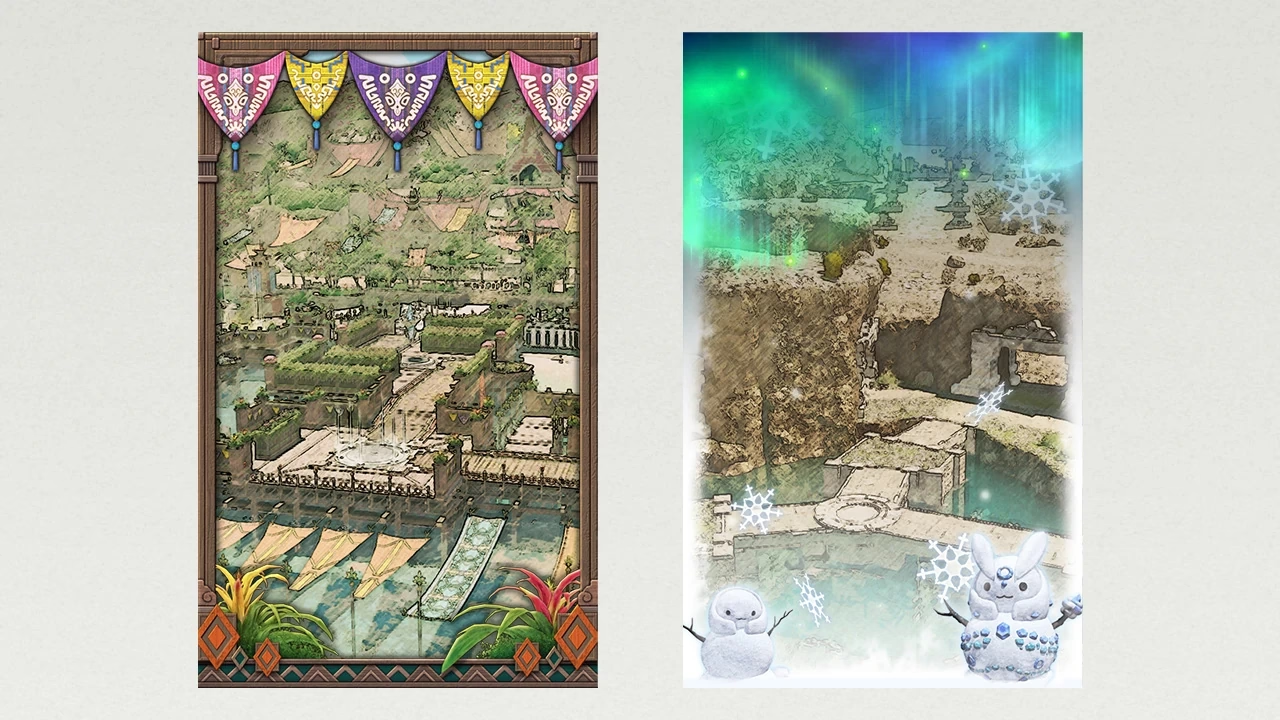
Official preview above: Bayside Battleground on the left; Worqor Chirteh on the right. Image: Square Enix, from the Series 10 launch announcement.
The original earning and reward-claim periods have both ended. This reference, checked on October 28, 2026, explains the historical rewards and how owners can use their portrait elements.
What Each Kit Unlocks
| Kit | Series 10 level | Included portrait elements |
|---|---|---|
| Bayside Battleground Framer's Kit | 10 | Background, Frame and Accent. |
| Worqor Chirteh Framer's Kit | 20 | Background, Frame and Accent. |
The exact level-10 name is Bayside Battleground Framer's Kit. Hidden Gorge Framer's Kit is a separate item with its own database entry. Use the full kit name when checking which decorations you have unlocked.
Both Series 10 kits are listed as Unique, Untradable and Market Prohibited. Their official descriptions specify portrait Background, Frame and Accent; they do not list a complete set of adventurer-plate base and border elements.
Compare the Two Designs with Your Character in Mind
Bayside Battleground: Coastal Scenery and a Structured Border
The left-hand preview combines a coastal settlement and water with a wooden border, colorful hanging banners and plants near the lower corners. The warm frame and detailed scenery give the portrait a defined edge and a strong sense of place.
When composing your own portrait, check how the banners and lower-corner decorations sit around the character. Try the pose and camera distance you actually want to use: a face, weapon or raised hand near the edge can compete with a more elaborate border. This is a composition choice, so judge it in the portrait editor rather than from the empty preview alone.
Worqor Chirteh: Snow, Aurora and Soft Edges
The right-hand preview shows rocky ruins and a snowy landscape beneath an aurora, with snowflakes and snow figures around the lower edge. Its pale border and green-blue light create a different look from Bayside's wooden framing.
Preview the character against the brightest parts of the background and check that the face and silhouette remain easy to read. Compare both designs using the same pose first, then adjust lighting or camera placement for the one you prefer. The kit supplies decorations; your portrait's character, pose and composition still come from the editor.
Series 10 Had Separate Earning and Claim Deadlines
- April 28, 2026: Series 10 earning ended
Square Enix's Series 10 end notice placed the cutoff at the beginning of patch 7.5 maintenance. Series EXP and level were reset for the next Series, with rewards replaced. Reaching a level in a later Series does not earn a Series 10 kit.
- September 8, 2026: the Series 10 grace claim period ended
The Series 11 announcement allowed already-earned Series 10 rewards to be claimed only until Series 11 ended. Series 11 then ended with patch 7.56 maintenance on September 8. That later window was for collecting rewards earned earlier, not adding Series 10 progress.
The Previous Series option used during that grace period is no longer a Series 10 claim route. These dates describe the original Series 10 availability; any future return would need its own acquisition details.
Apply a Kit You Already Own
If the kit item is still in your inventory, use it to unlock its portrait embellishments. Square Enix's portrait creation guide then provides the following workflow:
- Open Character, then Portraits from the main menu.
- Select a registered gear set and choose Edit. The gear set's subcommand menu also offers Edit Portrait. You can create one portrait for each gear set.
- Customize the portrait elements. Choose the background, frame and accent you want, then arrange the character using the available pose, camera, expression and lighting options.
- Select Save, close the editor and check the updated portrait in the portrait interface.
Use the actual saved portrait to judge the result. The paired preview shows the decorations clearly, but it cannot show how they frame every character, hairstyle or weapon.
Using the Result on Your Adventurer Plate
Instant portraits and the adventurer-plate portrait are separate. Instant portraits are linked to gear sets; the adventurer-plate portrait is used for the plate itself. Editing one should not be treated as a promise that the other was updated too.
To copy a finished instant portrait, equip its gear set, open that set's subcommand menu in Character, Portraits, and choose Apply to Adventurer Plate. Square Enix's copying instructions specify that only the currently equipped gear set's instant portrait can be imported.
If the import has a problem, the same official guide advises checking that the correct set is equipped, updating it with Update Gear Set, and resolving portrait warning marks by editing, updating and saving the portrait. After importing, check the portrait displayed on your plate.