Key Takeaways
- Edit Mode lives under Escape → Game Menu, not inside Options. In patch 12.0.5, Shift-clicking a feature's checkbox in the Edit Mode panel enables that feature directly, skipping the Enable Advanced Options step.
- Cooldown Manager can track Iron Bark and Rallying Cry from allied players and read them aloud via text-to-speech. The option exists, it ships off by default, and Blizzard mentions it nowhere in the UI tutorial.
- Boss Warnings only surfaces the "Show Spell Name" toggle when Orientation is set to Vertical. The toggle disappears on Horizontal with no explanation.
- The built-in Damage Meter supports up to three independent windows, each configurable to a different tracking category such as DPS output, Interrupts, or Avoidable Damage Taken. Most players activate only a DPS window and miss the rest.
- Typing /tui in chat and setting each bar's Keybind Text value to 100 restores keybind numbers that vanish silently on fresh installs. Blizzard does not cover this in any in-game tutorial.
- "Assisted Highlight" recommends spec-correct abilities by illuminating them on your action bars. It does not appear in any submenu and must be located by searching Highlight in the Options search field.
- Setting "Simplify Nameplates" to None and Debuff Padding to 2 are the two nameplate changes that immediately close the gap between the default UI and popular nameplate addons.
Most of these settings have been in the game since Midnight launched. Blizzard did not add them to the tutorial, the in-game tooltip, or the help documentation. The sections below walk through each one with the exact access path.
Edit Mode: The Starting Point Blizzard Buried in a Menu
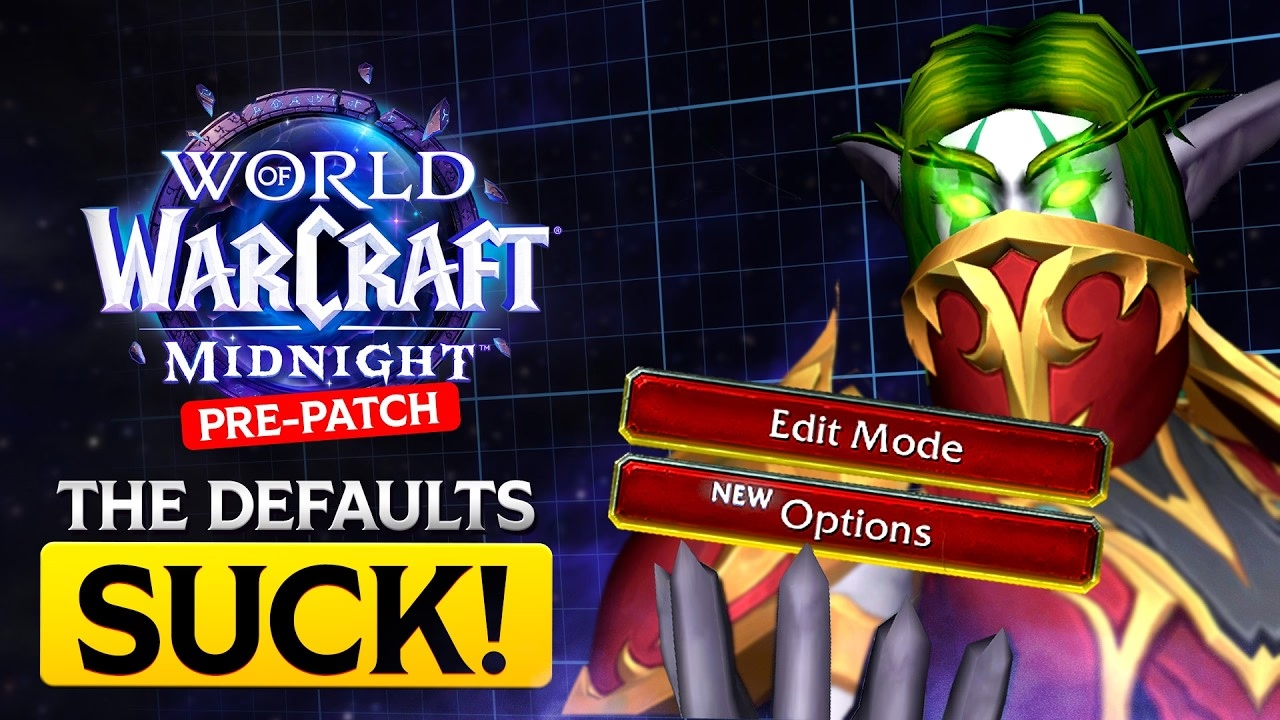
The entry point matters. Edit Mode is not in the Interface or Game sections of the Options window. It sits inside the Game Menu that appears when you press Escape. Open it, and you land in a layout grid where every HUD element is draggable, resizable, and opacity-adjustable. Two preset layouts ship with Midnight: Modern and Classic. Modern is the right choice for most players returning from addons. It places frames consistently and gives each one a clean edge to anchor against.
Layouts are saved per-character by default, but the sharing option near the bottom of the Edit Mode panel lets you propagate a layout account-wide. If you have a layout you like, sharing it to your alts takes under ten seconds and saves the same configuration work on every character you roll.
In patch 12.0.5, Shift-clicking a feature's checkbox in the Edit Mode panel enables that feature directly, skipping the Enable Advanced Options step. This applies to Cooldown Manager, Damage Meter, Boss Warnings, External Defensives, and Loot Window. It is not documented in any tooltip.
Action Bars: Three Things the Tutorial Skips
Start with the most absurd omission: keybind numbers. On fresh installs, the keybind labels on action buttons are hidden by default. Blizzard provides no notification and no tutorial mention. To restore them, type /tui in chat, navigate to Action Bars, open each bar's settings panel, and set Keybind Text to 100. Players who reinstalled for Midnight and noticed their keybind numbers were gone commonly spent time downloading addon replacements for a function the base UI already handles. The /tui path is not documented anywhere in the interface.
The second setting is Hide Bar Art. Every action bar ships with decorative frames around the buttons. Opening the action bar settings and toggling Hide Bar Art off removes those frames entirely, leaving only the button icons and their timers. On high-resolution displays where the art borders occupy real space, the result is noticeably cleaner.
The third setting is combat-only bar visibility. Individual action bars can be set to appear only while in combat, disappearing during downtime. A bar that holds situational abilities or consumables you only reach for mid-fight does not need to occupy the screen during travel. Side bars can also be rotated from vertical to horizontal and scaled down to two rows at around 70% for a tighter layout.
Cooldown Manager: The Built-In Tracker Most Players Leave Off
Cooldown Manager is enabled through Options by searching for "Cooldown Manager," or through Edit Mode under Enable Advanced Options. Once active, it displays a configurable strip of tracked abilities with countdown timers.
The external defensive tracking is the feature that surprises most players. Cooldown Manager can display the cooldowns of allied abilities: Iron Bark from a Druid, Rallying Cry from a Warrior, Life Cocoon from a Mistweaver. Combined with text-to-speech alerts, the manager reads the ability name aloud when an ally casts it on your character. Raid healers running the base UI can achieve a level of defensive awareness that previously required a dedicated addon.
Two other options worth enabling immediately: the DoT refresh cue, which highlights an ability when it enters its pandemic window, and combat-only display, which collapses the tracker outside combat. Cooldown Manager layouts can be saved per-spec and shared with other players via an import string, making it practical to import a community-authored preset rather than building from scratch.
Boss Warnings: The Orientation Trick Nobody Documents
Boss Warnings is enabled inside Edit Mode under Enable Advanced Options. The configuration panel opens with Orientation set to Horizontal by default. At this setting, the "Show Spell Name" toggle is absent from the options list with no visible explanation.
Changing Orientation to Vertical causes the Show Spell Name toggle to appear. Horizontal layout does not have room for inline spell names at readable icon sizes, so Blizzard hides the setting conditionally. The conditional hide is unlabeled, and the options panel does not indicate that Orientation controls which other settings are visible. Players who want named countdown labels on their Boss Warnings must discover through trial and error that the layout direction determines which options exist.
Recommended settings once Vertical is selected: Icon Size at 180%, Overall Size at 60%, Show Spell Name enabled, Show Tooltips enabled, Show Timer enabled. The "Hide Countdowns for Other Roles" toggle reduces visual noise for DPS players who do not need healer-role ability timers crowding the timeline. In patch 12.0.5, the Boss Timeline frame no longer renders during encounters that have no timeline events, which previously displayed an empty frame during fights with nothing tracked.
Built-In Damage Meter: More Than a DPS Window
The built-in Damage Meter is enabled through Options under Gameplay Enhancements. It supports up to three independently configurable windows, each of which can be set to a different tracking category. Common configurations are DPS output, Interrupts, and Avoidable Damage Taken, but the available categories also include Healing Done, HPS, Dispels, and Deaths.
The Interrupts window logs every interrupt cast during a fight with a per-player count. In Mythic+ keys, this data shows whether the group interrupt rotation is functional or whether one player is carrying the entire interrupt load. The Avoidable Damage Taken window tracks damage from mechanics the game classified as avoidable. That category is the one that matters for upgrade eligibility in high-end keys. It is the fire-stood-in number, and above +12 it is what separates the group upgrade from the depletion.
All three windows use server-side tracking, which means their numbers are not limited by who is in your party frame or within combat log range. In patch 12.0.5, the Damage Meter frame can be minimized while preserving the title bar, allowing the window to remain open without occupying a large area of the screen during downtime.
Nameplates and Raid Frames: The Four Settings That Matter
For nameplates, the two changes that matter most are Simplify Nameplates and Debuff Padding. Simplify Nameplates defaults to a reduced display that strips information. Setting it to None restores the full nameplate with health, cast bar, and debuff icons visible simultaneously. Debuff Padding set to 2 prevents icon borders from overlapping, which at default causes debuff icons to merge into a strip that is difficult to read during pulls with multiple targets.
The "Health Bar Color" mode under Aggro Display changes the health bar color to indicate threat status, matching the behavior nameplate addons replicate. Offscreen Nameplate Tracking adds faint indicators for enemies outside the viewport, useful in fights where an add you are not facing needs to die before it reaches the raid.
For raid frames, two sub-options are frequently overlooked. Center Big Defensives places large defensive ability icons (Pain Suppression, personal cooldowns, externals) in the center of each player's frame rather than stacking at the edge. Dispellable By Me filters the debuff indicators to show only debuffs your spec can actually remove, eliminating the noise of debuffs you cannot act on. In patch 12.0.5, default raid frame and arena frame sizes were increased for improved readability.
Assisted Highlight and the Accessibility Options Worth Knowing
Assisted Highlight is a setting that illuminates spec-correct abilities on your action bars based on the current game state, flagging the spell you should cast next according to standard rotation logic. It does not appear in any Options submenu. The only way to find it is to type Highlight in the search field at the top of the Options window. The setting then appears as a single checkbox. Players use it most when learning a new spec or returning to a character after a long break.
Two additional accessibility options that most players never locate: text-to-speech alerts for interruptible target casts, which reads the name of the ability your target begins channeling; and health threshold notifications, which announce aloud when your health drops below a configured percentage. Both sit inside Accessibility, both are off by default, and both work without any additional audio addon infrastructure.
Housing Interface: What the Base UI Added in 12.0
Player housing introduced two interface behaviors in Midnight that work through the base UI without addons. The first is Decor Catalog link sharing via chat: Shift-clicking a decorative item in the Catalog opens a shareable chat link that other players can click to view the same item directly in their own Catalog. Players who spent time describing layout items in party chat now just Shift-click and share the link.
Both behaviors are base-UI features added in patch 12.0. Players leveling their housing through Neighborhood Endeavors can find the process takes several months of consistent participation. Players who want to compress that timeline can explore WoW housing carry services.
Frequently Asked Questions
How do I open Edit Mode in WoW Midnight?
Press Escape to open the Game Menu, then select Edit Mode. It is not inside the Options window. Once open, you can drag, resize, and configure every HUD frame. In patch 12.0.5, Shift-clicking a feature's checkbox in the Edit Mode panel enables that feature directly without navigating through Enable Advanced Options.
Why does Boss Warnings not show spell names?
The "Show Spell Name" toggle only appears when Orientation is set to Vertical. With Horizontal orientation selected, the toggle is hidden with no in-game explanation. Change Orientation to Vertical in the Boss Warnings configuration panel and the Show Spell Name option appears.
Is the built-in Damage Meter good enough, or do I still need an addon?
For most Mythic+ and raid content in Midnight, the built-in Damage Meter is sufficient. It tracks damage, healing, interrupts, and avoidable damage across configurable windows using server-side data. Players progressing at +12 and above, or on Mythic raiding, typically continue using WeakAuras for custom triggers and Warcraft Logs for post-fight analysis.
What does Assisted Highlight do in WoW Midnight?
Assisted Highlight illuminates abilities on your action bars that the game recommends casting based on your current spec's rotation logic. It functions as a built-in rotation suggestion tool. To enable it, open Options and search for Highlight. The setting does not appear in any submenu navigation and cannot be found by browsing the Options tree normally.
How do I restore keybind numbers that disappeared after installing Midnight?
Type /tui in chat to open the Talent and UI configuration panel. Navigate to Action Bars, open each bar's settings, and set Keybind Text to 100. This restores the keybind number labels that are hidden by default on fresh installations. Blizzard does not mention this setting in any tutorial or in-game help text.
Can I track an ally's Iron Bark or Rallying Cry with the default UI?
Yes. Enable Cooldown Manager through Options or Edit Mode, then configure External Defensive Tracking in its settings. Cooldown Manager will display allied defensive cooldowns alongside your own tracked abilities. The text-to-speech alert option reads the ability name aloud when an ally casts it on your character.
What are the most important nameplate settings to change in WoW Midnight?
Set Simplify Nameplates to None to restore the full nameplate display, and set Debuff Padding to 2 to prevent debuff icon borders from overlapping. Both settings are inside Interface → Nameplates. For raid frames, enable Center Big Defensives and the Dispellable By Me filter inside the raid frame settings panel.
Does WoW Midnight still need addons after the UI overhaul?
For casual, Normal, and Heroic content, the Midnight base UI covers most use cases: Cooldown Manager, Boss Warnings, built-in Damage Meter, Assisted Highlight, and nameplate configuration together replace the core functionality of WeakAuras, Details!, and nameplate addon packages. Players at +12 and above in Mythic+ or progressing in Mythic raiding typically continue using WeakAuras for custom triggers and Warcraft Logs for post-fight analysis.
Last reviewed 2026-05-27 against patch 12.0.5 (Lingering Shadows). Maintained by WowCarry's WoW team.