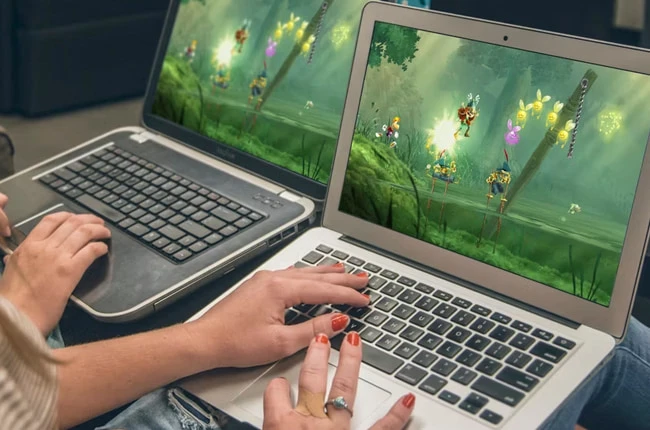
Parsec is a remote desktop software that allows users to access and control a computer from a different location. Initially designed for gaming, it can be used for various applications, such as working remotely or collaborating on projects. Parsec is available for Windows, macOS, Linux, and Raspberry Pi, and it supports cloud gaming services like Amazon Web Services and Paperspace.
Parsec - WowCarry Collaboration
At WowCarry, we use Parsec for remote gaming and collaboration. Our clients can share their screens with our game professionals and collaborate on achieving some game goals in real time, regardless of their physical location. With Parsec, WowCarry can provide real-time assistance without the need for them to disclose their account information, ensuring their safety and security.Low Latency
The low latency feature of Parsec enables WowCarry's game professionals to assist you in real time without experiencing any lag or delay, which is essential in online games where split-second decisions can make a significant difference. This would ensure you receive the best possible service and achieve your game goals quickly and efficiently.Ease of Use
Another advantage of Parsec is its ease of use. The software is straightforward to set up and use, and it works with any device with a reliable internet connection. You can also customize your streaming settings, such as resolution and frame rate, to optimize the experience. Overall, Parsec is an excellent choice for anyone who needs to access and control a computer remotely. Its low latency, ease of use, and versatility make it a valuable tool for gamers, remote workers, and anyone who needs to work or play from a different location.Step-by-Step Setup Guide
Here's a step-by-step guide on how to share the game window using Parsec software:- First, ensure you and the person you have Parsec installed on your computer. You can download Parsec from their website (https://parsec.app/downloads).
- Once Parsec is installed, open the game on your computer.
- Next, open the Parsec app on your computer and log in to your account.
- Click on the "Friend" tab in the Parsec app and add the game professional with whom you want to share the game as a friend. We will provide you with the name.
- Once your new friend has accepted your friend request, click on their name in the "Friend" tab and select "Share."
- A window will pop up asking you what you want to share. Select the game application from the list.
- Check the box that says, "Give them control." Thus, you will give your friend control of the game character.
- Click "Share" to share your game window with your friend.