Start with Enhanced If You Want Quest Guidance
Choose Enhanced for quest-map guidance and modern interface defaults; choose Classic if you prefer less automatic guidance. Both are presentation presets inside WoW Forever. You choose one before your ruleset, and you can change its individual settings later.
This guide covers the first-login choices and common interface obstacles. For the opening time and account-access options, use our launch and access guide; for a longer progression plan, continue to the leveling guide.
Classic vs. Enhanced: What Actually Changes?
The defaults below are from Blizzard’s launch overview. Classic here is the preset’s name, not a direction to select a different WoW game version in Battle.net.
| Setting | Classic | Enhanced |
|---|---|---|
| Character models | SD | HD |
| Quest points and objective areas | Off | On |
| One-bag display | Off | On |
| Transmog | Off | On |
| Keyboard movement defaults | Camera turning | Strafing |
| Interface layout | Classic | Centralized |
You can mix preferences afterward. For example, choosing SD models does not require you to keep quest guidance disabled. Open Game Menu → Options to adjust individual settings. The initial preset chooser does not appear again after your first login.
HD and SD character models change appearance rather than abilities or progression. That character-specific choice can also be changed through Options or a Barbershop. Choose the look you enjoy rather than treating either model style as a combat advantage.
Skyborne model exception: SD Skyborne characters and Druid forms are planned for early 2027, according to Blizzard’s visual update notice. The general HD/SD choice does not mean that race has both options at launch. See our Skyborne guide before choosing it for a particular model style.
Agree on Ruleset and Faction Before Creating Characters
Your friends can choose different presentation presets and still coordinate their characters. The important shared choices are ruleset and faction: ordinary parties, guilds, dungeons and raids require both to match.
Ask for those two details before entering character creation. “We are playing Forever” is not enough to establish that your characters can group. Our ruleset guide compares the outdoor PvP and roleplay rules. Choosing Enhanced does not itself select a PvP ruleset.
Missing Quest Markers? Check the Preset Before Addons
With Classic defaults, disabled quest points and objective areas are expected. If you want map guidance, inspect the quest-display settings under Game Menu → Options before installing an addon to solve it. You do not need to discard the character or wait for the initial chooser to return.
Then separate a display problem from a tracking problem:
- Open L and find the quest in the full Quest Log. Read its actual objective.
- Track the quest if you want it in the on-screen tracker. A crowded tracker does not necessarily show every accepted quest.
- Open M and compare the map with the directions in the quest text. Quest-display settings determine whether the preset’s extra guidance is enabled.
Blizzard’s new-player instructions explain the native controls: an exclamation point identifies an available quest, while a question mark identifies a completed quest’s turn-in. Check the log before abandoning and retaking a quest just because its objective is not visible.
Put Your First Abilities Where You Can Reach Them
Open P for the Spellbook and drag a learned ability onto an action-bar slot. Set its key under Game Menu → Options → Keybindings. The keys in this guide are the published defaults; use your assigned bindings if you have changed them.
Test movement and your main ability on an easy nearby enemy before taking several enemies at once. If turning feels different from what you expected, compare the keyboard-movement defaults in the preset table and adjust the bindings. Change one setting at a time so you can tell which change helped.
Visit your class trainer as you level to learn new abilities, then check that the abilities you intend to use are on your bars. If you later want additional interface features, our Forever addon guide covers installation and compatibility separately.
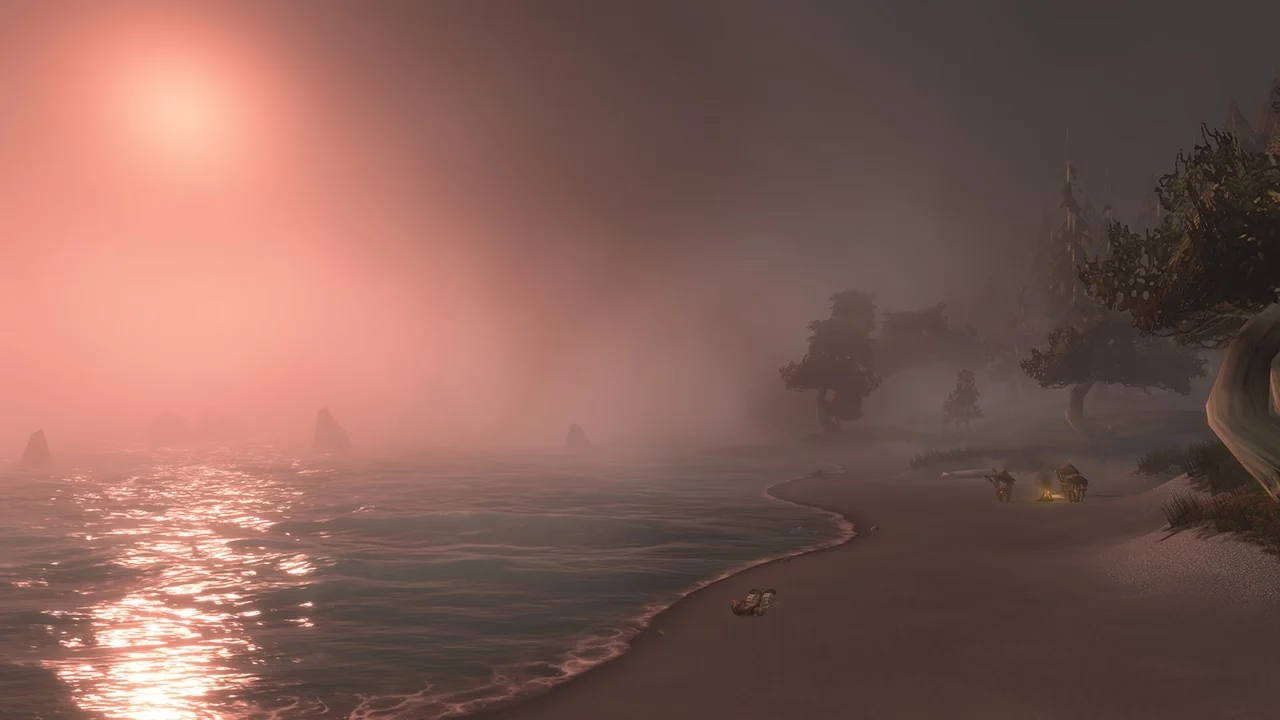
Cover: unaltered game scenery published with Blizzard’s Forever launch overview. © Blizzard Entertainment. Settings and controls follow the official pre-launch documentation.