Enhancing Game Fonts
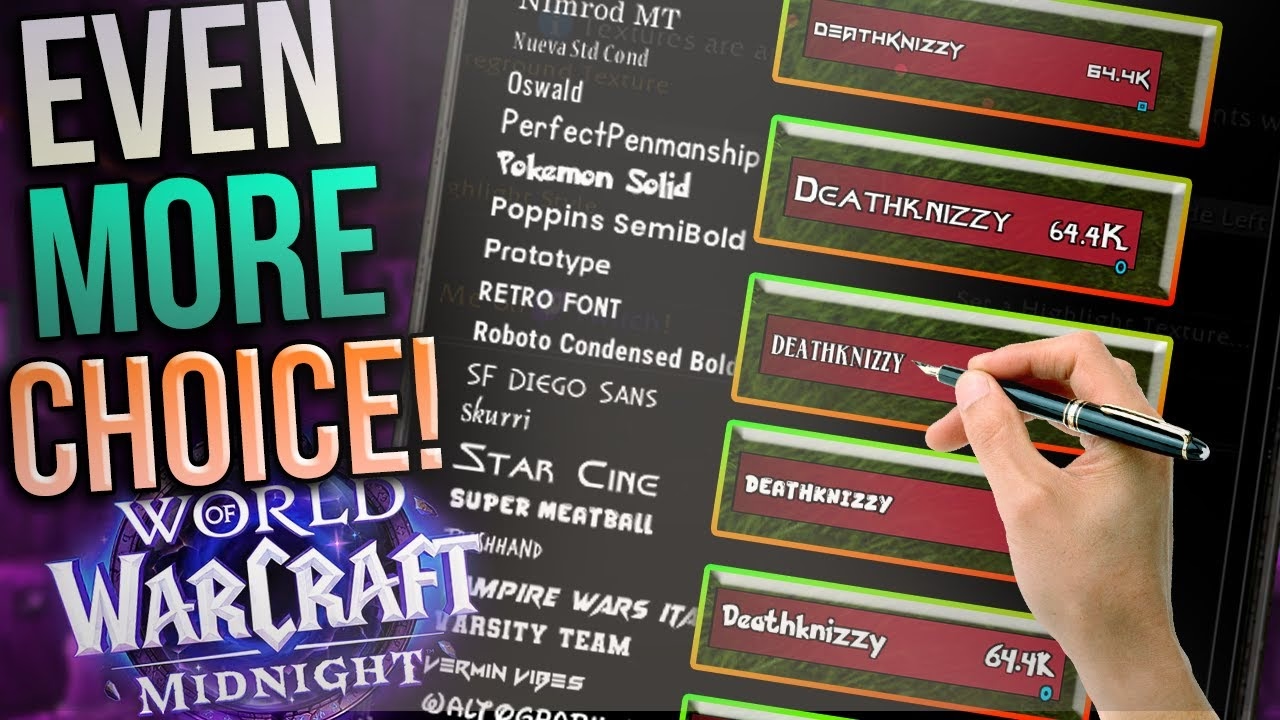
Styling fonts in your game can give your UI a fresh, personalized look, especially as you explore new styles for your characters. With many beloved add-ons, there's plenty to style in the game, such as:
- Damage meters
- Cooldown manager fonts
- Party or raid fonts
- Action bars
- Chat bubbles
- Quest text
With those elements in mind, the first step is expanding the font library available to your add-ons.
Expanding Font Choices
Blizzard offers various font options, but if you're looking to expand these choices, additional steps are needed. The process is straightforward unless you plan to add an extensive number of fonts. Here's what you need:
- Lib Shared Media Add-on: Already likely installed through other add-ons, this populates fonts, textures, and sounds across all add-ons.
- Shared Media Additional Fonts: This add-on allows you to incorporate and manage custom fonts in your game interface.
Once both add-ons are in place, adding your own font files takes just a few minutes.
Adding Custom Fonts
To include custom fonts in your game, follow these steps:
- Download Fonts: Search online for free fonts, download them, and extract the files.
- Organize Fonts: Create a distinct folder for your custom fonts within the shared media additional fonts directory.
- Edit LUA File: Open the LUA file in the add-on directory to register your fonts. Each entry should specify the font name and path. Using this approach keeps your fonts intact even after add-on updates, preventing any accidental loss.
After saving the LUA file, restart the game client or use /reload to make the fonts available immediately.
Available Font Options
Here's a simple table to outline the steps required to manage your fonts:
| Step | Description |
|---|---|
| Download Fonts | Find and download desired fonts online, then extract. |
| Organize Fonts | Create a separate folder for your custom fonts. |
| Edit LUA File | Register fonts by editing the shared media LUA file. |
With those steps complete, the new fonts show up in every compatible add-on's interface panel the next time you open its settings.
Applying Fonts Across Add-ons
Most add-ons supporting custom fonts will pick up your newly added fonts. For instance:
- Bartender: Allows text styling.
- Details: Offers additional text styling options.
- Grid: Supports font customizations.
- RQI: Includes text styling features.
These add-ons, alongside others with font-modding capabilities, will let you style your game UI distinctively compared to Blizzard's default settings.
Changing fonts is a straightforward way to refresh your game interface. As you prepare for more UI customizations involving borders and bars, start with these simpler modifications to transform your gaming experience.