Fix a Broken WoW Interface Without Wiping Your Setup
A broken World of Warcraft interface does not automatically call for deleting folders or rebuilding years of addon profiles. Start with the smallest reversible test, keep a copy of anything personal, and move to Blizzard's current UI reset procedure only when the clean-client test can answer a useful question. This guide separates a runtime reload, an Edit Mode layout change, a CVar reset, and the full Cache, Interface, and WTF reset so each action has a clear purpose.
Key Takeaways
- /reload: reloads the running WoW interface but keeps addons, SavedVariables, layouts, keybinds, and other saved choices in place.
- Edit Mode: export the current layout string before switching to a Blizzard preset or importing a known-good profile.
- /console cvar_default: resets console-variable changes and is broader than moving frames or reloading Lua.
- Cache, Interface, and WTF: rename all three folders for Blizzard's full clean-state test; do not destroy the original copies before the result is known.
- Battle.net: use Show in Explorer on Windows or Reveal in Finder on macOS so a custom install location does not send you into the wrong client folder.
- Addon managers and sync tools: stop automatic restoration before testing, because a resync can repopulate the files that were intentionally moved aside.
The useful question is not “How do I erase my UI?” It is “Which layer is causing the fault, and can I prove that without losing my working setup?”
Choose the Smallest Reset That Matches the Problem
WoW players use “reset the UI” for four different actions. They are not interchangeable. Pick a level that matches the symptom, test once, and stop as soon as the result gives you a clean answer.
| Action | What it changes | Use it when |
|---|---|---|
/reload | Restarts the live interface session and reloads addon Lua | A frame is stuck, an addon just changed, or a temporary display error appeared |
| Edit Mode layout change | Changes Blizzard HUD placement and the selected saved layout | Action bars, unit frames, or other editable HUD elements are misplaced |
/console cvar_default | Returns modified console variables to their coded defaults | A hidden setting or macro-altered CVar survives a normal folder test |
| Rename Cache, Interface, and WTF | Starts WoW with newly generated client data, no installed addon code, and fresh local settings | You need to prove whether the fault comes from saved UI data or addons |
A full folder reset is diagnostic, not a ritual after each patch. If /reload fixes one frozen frame and the problem does not return, rebuilding the rest of the UI adds risk without adding evidence.
Back Up the UI and Stop Automatic Resync First
Close World of Warcraft before copying or renaming its files. WoW writes settings during logout and shutdown, so changing live files can leave the backup out of step with the last session. Save the problem state as well: take a screenshot, copy the exact Lua error text, record which character and spec show it, and note what changed just before it started.
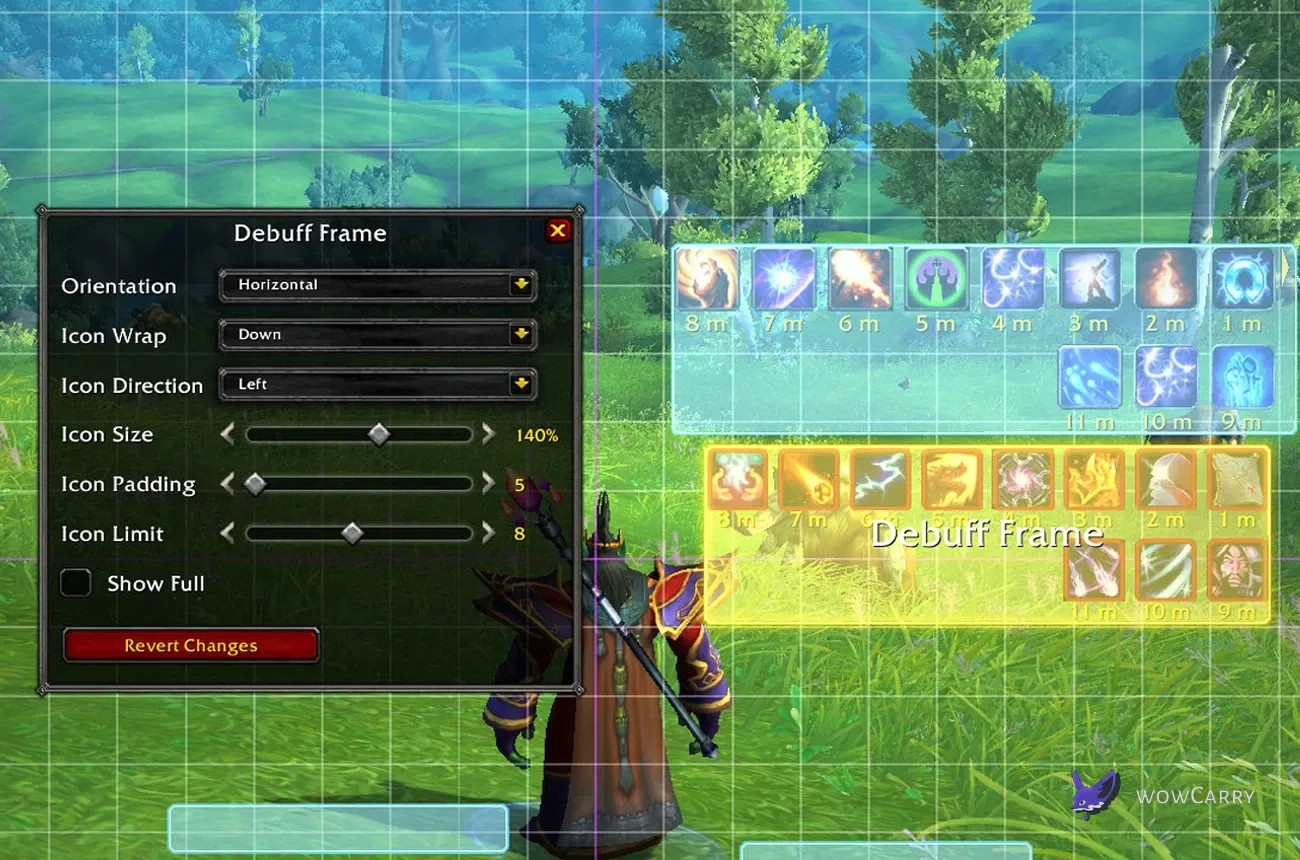
For Retail Edit Mode, press Esc, choose Edit Mode, select the layout in the dropdown, then use Share and Copy to Clipboard. Paste the whole layout string into a plain-text file outside the World of Warcraft folder. Blizzard recommends this export because a lost layout cannot always be recreated after the fact. This copy preserves the layout string; it is not a backup of addon profiles or the complete WTF directory.
✏️ Keep two rollback layers: export the active Edit Mode layout, then copy the version folder's Interface and WTF directories to a clearly dated backup outside the live WoW tree.
Temporarily stop the addon manager before the reset. Article 7549 warns that addon-management software can re-sync cleared data; if the manager has no reliable pause or offline setting, follow Blizzard's instruction to uninstall it temporarily. Also check whether the custom WoW install, backup destination, Desktop, or Documents folder sits inside OneDrive, iCloud Drive, Dropbox, or another sync location. Those tools behave according to the player's configuration, so do not assume they are active or inactive. Confirm their status and prevent a restore during the test.
Start with /reload for a Runtime UI Fault
Type /reload in chat and press Enter when the client is responsive enough to accept commands. WoW reloads the user interface, reinitializes the currently loaded addon code, and returns the character to the same game session. New addon files that were not present when WoW launched still require a full client restart. It does not remove addon files, clear SavedVariables, reset Edit Mode layouts, restore default keybinds, or clear the Cache directory.
This is the right first test for a frame that stopped updating, a menu that failed to redraw, a newly enabled addon, or a transient Lua state after changing settings. If an addon throws the same error immediately after the reload, capture the first error rather than clicking through a long chain. Later errors often follow from the first failure and provide less useful evidence.
When the symptom returns only during a boss pull, group change, spec swap, or particular character action, write that trigger down. A clean full reset can prove that addon or saved data is involved, but it cannot reproduce a condition that the tester never attempts.
Reset Only an Edit Mode Layout
Use Esc > Edit Mode when the issue is limited to Blizzard HUD placement. The layout dropdown can switch between saved layouts and the Blizzard presets available in the current client. Export the working layout first, select a clean preset, save it under a distinct name, and test the affected spec. Do not overwrite the only known-good profile while experimenting.
Edit Mode is narrower than a folder reset. It changes supported HUD positions and component options; it does not remove third-party addon code, clear addon SavedVariables, rebuild Cache, or return all console variables to defaults. Some addons draw their own frames outside Edit Mode, so a Blizzard preset cannot reset those frames.
📌 Common mistake: switching the Edit Mode layout while an action-bar or unit-frame addon still controls the same region makes the result ambiguous; test the Blizzard preset with the relevant addon disabled.
If Edit Mode is greyed out during Exile's Reach or the introductory tour through Stormwind or Orgrimmar, Blizzard says to complete that new-player tour first. A disabled button in that flow is not proof of a damaged WTF folder. If the selected layout disappears, use the saved import string through Edit Mode > layout dropdown > Import, give it a new name, and test before making more changes.
Use /console cvar_default as a Separate Advanced Reset
A console variable, or CVar, holds a client option that may not have an obvious button in the regular settings panels. Addons and macros can change CVars. Renaming WTF does not guarantee that every synchronized CVar returns to its coded default, which is why Blizzard lists /console cvar_default as advanced troubleshooting after the folder procedure.
Record unusual accessibility, camera, nameplate, graphics, sound, and control settings before running it. Then enter /console cvar_default in chat. Blizzard notes that a permission error can appear even though the command works. Run /reload after the command, then retest the exact symptom. Expect console-based customizations to need reconfiguration.
This command is not an Edit Mode profile switch and it is not a Cache cleaner. It can affect a wider set of console choices than the broken frame that sent you here. Use it after the simpler tests, not as a casual way to nudge one movable element back into place.
Run the Full WoW UI Reset Safely
Blizzard's full procedure starts outside the game. Completely exit WoW, stop the addon manager, then open the Battle.net desktop app. Choose the cogwheel beside Play and select Show in Explorer on Windows or Reveal in Finder on macOS. That launcher action is the source of truth for a custom install. Inside the World of Warcraft directory, open the version that actually shows the problem.
| Client | Exact version folder | Default path examples |
|---|---|---|
| Retail WoW | _retail_ | C:\Program Files (x86)\World of Warcraft\_retail_\/Applications/World of Warcraft/_retail_/ |
| Classic Era | _classic_era_ | C:\Program Files (x86)\World of Warcraft\_classic_era_\/Applications/World of Warcraft/_classic_era_/ |
| Progression Classic | _classic_ | C:\Program Files (x86)\World of Warcraft\_classic_\/Applications/World of Warcraft/_classic_/ |
The Windows and macOS strings are default examples, not promises about a custom library. If Battle.net reveals a different World of Warcraft directory, use the revealed location and preserve the exact underscored version name.
- Verify that WoW is fully closed and that the selected version matches the affected client.
- Copy
InterfaceandWTFto a dated backup outside the active World of Warcraft directory. - Rename
CachetoCacheOld,InterfacetoInterfaceOld, andWTFtoWTFOld. - Launch that WoW version. The client creates fresh working folders as needed.
- Log into the affected character and reproduce the original trigger before reinstalling or restoring anything.
Renaming provides a visible rollback and follows Blizzard's procedure. Do not delete the Old folders until the clean test has passed, the setup has been rebuilt, and the retained backup opens correctly.
Know What Cache, Interface, and WTF Store
The three folders isolate different parts of the client state. Resetting all three gives the strongest addon-versus-default test, while restoring them selectively helps identify what carried the fault.
| Folder | Main role | What the clean copy proves |
|---|---|---|
Cache | Regenerated temporary client data | Rules out stale cached data without preserving it as a required customization |
Interface | Third-party addon program files under Interface/AddOns | Starts the client without the installed addon code |
WTF | WoW configuration plus account-, realm-, character-, and addon-saved settings | Tests without the local profiles and SavedVariables that can reproduce a fault |
Reinstalling an addon restores its program files in Interface; it does not automatically recreate a carefully tuned profile from WTF. Conversely, copying all of WTFOld into the clean directory can bring the original problem straight back. Treat code and saved configuration as separate restoration decisions.
Test the Clean Client and Isolate Addons
Keep the first clean session genuinely clean. Do not start the addon manager, copy profiles, import a full UI pack, or turn on a sync job before reproducing the bug. Use the same character, spec, content type, display mode, and trigger that showed the issue. A different test condition can produce a false “fixed” result.
| Clean-test result | Likely meaning | Next move |
|---|---|---|
| Problem is gone | An addon, SavedVariable, local configuration, or cached state was involved | Rebuild in small batches and test after each change |
| Problem remains on one character or spec | The trigger is narrower than the general addon set, or the issue is a live game bug | Capture character, spec, layout, and reproduction steps |
| Problem remains across characters | The cause may sit outside the reset folders or in the current client build | Repair the game, check system-level troubleshooting, and report a reproducible bug |
If the clean client works, add back a small group of current addons and repeat the same action. A binary split is faster for a large collection: enable half, test, then keep dividing the failing half. Dependency libraries must stay with the addons that require them, so read the error and the addon list before interpreting a failed batch.
⚠️ Do not judge the reset at the character-select screen: reproduce the original combat, spec-swap, Edit Mode, or menu action before declaring the Cache, Interface, and WTF test successful.
For a rebuilt combat layout, read the WoW Cooldown Manager guide before importing old visual settings wholesale. PvP players can also review the Midnight PvP UI while deciding which frames must return first.
Restore Addons and Profiles Without Restoring the Fault
Once the baseline is stable, close WoW again. Keep the new Cache directory. Install fresh addon releases into the new Interface/AddOns directory, or resume the addon manager only after confirming its target points to the correct client version. Test the addon code before restoring its old profile.
Restore settings by the smallest practical unit. Many addons support export strings or named profiles; use those before replacing the whole WTF tree. If a profile exists only in WTFOld, copy the relevant SavedVariables files while WoW is closed, then launch and test that addon alone. Never edit or merge live SavedVariables while the client is running because logout can overwrite the change.
✏️ Name the checkpoints: keep “clean,” “addons installed,” and “profiles restored” backups so a bad SavedVariables import does not force another full rebuild.
If the clean reset did not help, roll back rather than leaving a half-rebuilt setup. Close WoW, move the newly generated Cache, Interface, and WTF folders aside with names such as CacheFresh, InterfaceFresh, and WTFFresh, then rename CacheOld, InterfaceOld, and WTFOld back to their original names. Restore only from the copy that was made while WoW was closed. A filesystem rollback cannot undo all CVar changes made by /console cvar_default, so reapply recorded console preferences separately.
Escalate a UI Error with Reproducible Evidence
A clean three-folder reset that reproduces the same problem rules out a large part of the local UI stack. In Battle.net, use Scan and Repair for the WoW client when damaged game data is plausible. Then work through World of Warcraft Technical Troubleshooting for drivers, permissions, security software, and operating-system checks that sit outside Cache, Interface, and WTF.
For a repeatable client defect, use Blizzard's Report a Bug workflow. Include the WoW version, current build or patch, character and spec scope, exact steps, expected behavior, actual behavior, first Lua error, and confirmation that the issue persists with freshly generated Cache, Interface, and WTF folders. Remove personal information from screenshots and logs.
Keep the Old folders until the case is understood, but do not attach an entire WTF directory unless Blizzard explicitly requests the relevant diagnostic data. The smallest reliable reproduction is easier to verify than a long list of unrelated settings changes.
WoW UI Reset FAQ
Does /reload Reset My WoW Addons?
No. /reload restarts the active World of Warcraft interface and reinitializes the currently loaded addon code. New addon files that were not present when WoW launched still require a full client restart. It leaves Interface/AddOns, WTF SavedVariables, keybinds, Edit Mode layouts, and the Cache directory in place. Use it for a stuck frame or temporary Lua state. If the same addon error returns as soon as the interface reloads, save the first error and move to an addon-isolation test rather than repeating the command.
Which Folder Contains WoW Addon Settings?
The WTF directory contains most World of Warcraft and addon-saved configuration, including account-, realm-, and character-scoped SavedVariables. The Interface directory normally contains the addon program files under Interface/AddOns. That distinction explains why reinstalling addon code does not necessarily restore a custom profile, and why copying all of WTFOld back at once can reintroduce the same fault that the clean reset removed.
Is It Safe to Delete Cache, Interface, and WTF?
World of Warcraft can generate fresh working folders, but deletion discards the easiest rollback. Blizzard's reset procedure supports renaming them to CacheOld, InterfaceOld, and WTFOld. Copy Interface and WTF outside the live client first, then rename the originals while WoW is closed. Delete the Old copies only after the clean setup works, required profiles have been restored, and the separate backup has been verified.
What Is the WoW Retail Folder Name?
The exact Retail version folder is _retail_, including the leading and trailing underscores. A default Windows example is C:\Program Files (x86)\World of Warcraft\_retail_\; a default macOS example is /Applications/World of Warcraft/_retail_/. Custom Battle.net libraries can live elsewhere, so use the cogwheel beside Play and choose Show in Explorer or Reveal in Finder before changing Cache, Interface, or WTF.
What Is the Difference Between _classic_ and _classic_era_?
Blizzard uses _classic_era_ for the Classic Era client and _classic_ for the currently progressing Classic client. Each version has its own Cache, Interface, and WTF directories. Reset the folder for the client that shows the problem. Changing _retail_ does not provide a clean test for Classic Era, and resetting _classic_era_ does not test Progression Classic.
Does /console cvar_default Reset Edit Mode?
Treat them as separate tools. /console cvar_default returns modified console variables to their coded defaults, while Edit Mode manages supported Blizzard HUD layouts and frame options. Export the Edit Mode layout through Share and Copy to Clipboard before testing either path. A CVar reset can change console-based preferences, but it is not a reliable substitute for selecting or importing a clean Edit Mode profile.
Why Did My Addons Return After a Full Reset?
An addon manager can repopulate Interface/AddOns when it starts, and a configured filesystem sync tool can restore files in a folder it watches. Blizzard specifically warns that addon-management software can re-sync data cleared by the reset steps. Stop the manager and confirm the actual install target before launching the clean client. Check OneDrive, iCloud Drive, Dropbox, or similar tools only if the player's WoW or backup path is configured inside their synced locations.
When Should I Contact Blizzard About a UI Problem?
Escalate after the same World of Warcraft symptom survives a clean Cache, Interface, and WTF test, or when it affects the unmodified client across characters. First use Battle.net Scan and Repair and the current technical checklist where relevant. A useful bug report names the client version, patch, character and spec scope, exact trigger, expected result, actual result, and first Lua error, plus confirmation that no addon code or old SavedVariables were loaded.
Last reviewed 2026-08-26 against Patch 12.1 Curse of Ula'tek — Maintained by WowCarry's WoW team.