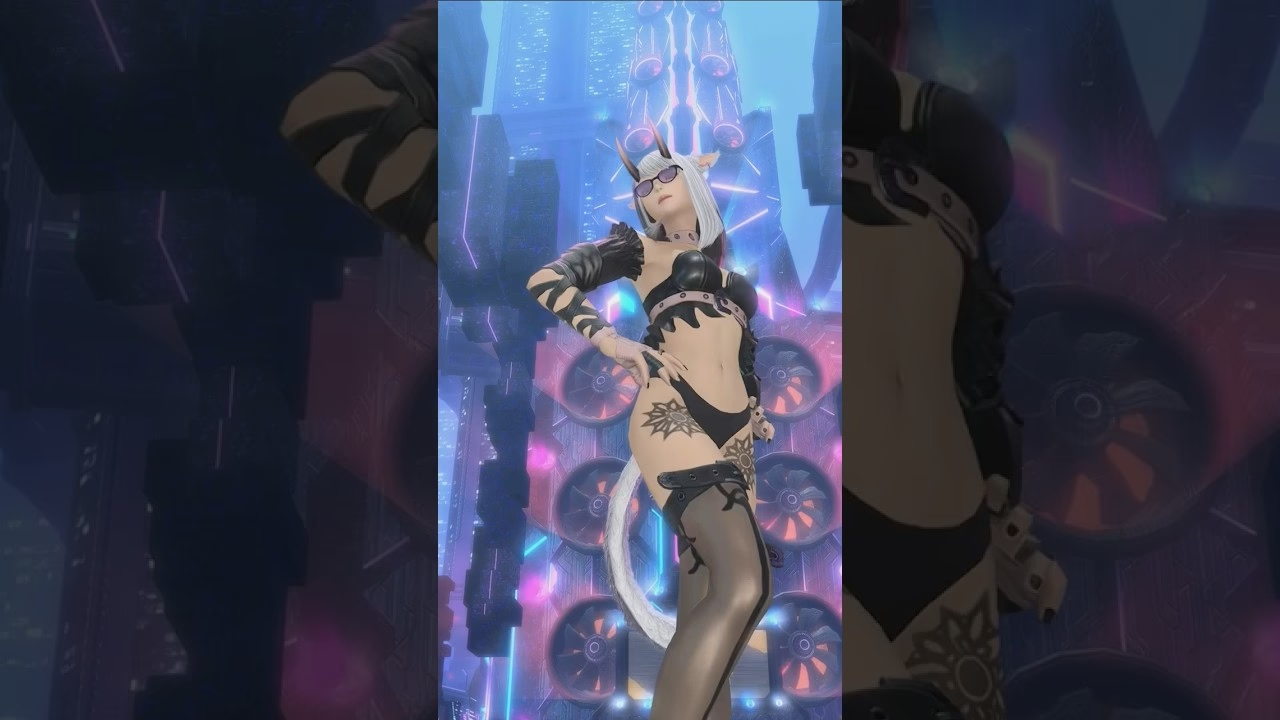
The Catwalk-Glamour Trick That Looks Like a Camera-Shake Mode
The popular Japanese FFXIV trend that produces a runway-camera, hand-held feel on a Gpose glamour shot is not built on a hidden Gpose setting. It is built on the Group Pose target-focus camera locking onto a shoulder minion, the minion's idle bob carrying the camera, and your character running the Runway Walk emote one body length away. The effect reads like a phone-camera follow shot at Paris Fashion Week, but the menu path is plain: tab onto the minion, hide it at the end, post the screenshot.
Key Takeaways
- There is no "camera shake mode" in Gpose. The handheld feel comes from tab-focusing the Gpose camera onto a shoulder minion so the camera inherits its idle micro-animation, per the Lodestone target-focus guide.
- The runway emote is named Runway Walk, added in Patch 7.4 as a Mog Station purchase taught by Ballroom Etiquette - Sophisticated Saunter. Commands are
/runwaywalkor/runway. - Shoulder minions are summoned with /beckon. The blog's "gay cat" is almost certainly Gaelikitten, a Sohm Al gold-coffer drop.
- Hunting Hawk, Baby Opo-opo, Wind-up Nanamo, and Wind-up Garuda are popular alternative perches; Bluebird and Midgardsormr auto-perch when you stand still.
- Hide the minion in the final shot via Character Display Settings (the last tab inside Group Pose). Without that step the showcase reads as "person posing with pet" instead of catwalk close-up.
With those beats covered, the rest of this guide walks the full setup, the verified menu paths, and the venues the Japanese glamour community has settled on.
What Gpose Actually Does (and Why "Camera Shake" Is the Wrong Name)
The Group Pose menu has six tabs: Camera Settings, Motion Settings, Filters, Frame Settings, Sticker Mode, and Character Display Settings. None of them is named Camera Shake. The handheld effect comes from how the Gpose target-focus camera behaves. When you press Tab on keyboard (or move the d-pad left or right on a controller) the camera cycles between targetable subjects in the scene: your character, party members, NPCs, and minions are all valid focus targets.
Once the camera is centred on the minion, it inherits the minion's idle animation. Most shoulder-perching minions have a soft chest bob, ear twitch, or wing flutter that runs constantly. The camera rig tracks those tiny motions. Your character, framed beside the minion, is then animated by the Runway Walk emote, which trots forward in a deliberate runway pace. The combined effect produces the floating, slightly bumpy follow-cam look that has been circulating on Japanese FFXIV Twitter and crossing into Western glamour-photography communities through the spring.
The two motion-pause keys do matter for the result. Disable All Motion (key 1, or LT/L2 on controller) freezes everything in the scene. Disable Target Motion (key 2, or RT/R2) freezes only the focused subject. For the catwalk shot you want all motion on, so the runway pace plays out and the minion keeps bobbing.
Setting Up the Shot, Step by Step
The setup takes about a minute once you have the emote and a shoulder minion ready.
- Pick a shoulder minion. Gaelikitten, Hunting Hawk, Baby Opo-opo, Nutkin, Owlet, Lesser Panda, Shalloweye, Puff of Darkness, and the Wind-up Nanamo / Garuda / Succubus / Dragonet / Ohl Deeh line all perch on the shoulder when you use
/beckon. On Lalafell characters they perch on the head instead. - Summon and beckon. Summon the minion, then run
/beckon. Wait one or two seconds for the perch animation to land. Some minions (Bluebird, Midgardsormr, Doman Magpie, Morpho, Road Sparrow, Koala Joey) skip the/beckonstep and auto-perch when you stop moving. - Run the Runway Walk emote.
/runwaywalkor the shortcut/runwaystarts the catwalk gait. The emote is a Mog Station product page item, listed here, taught by Ballroom Etiquette - Sophisticated Saunter. If you do not own it,/sashay,/airquotes, the Manderville Dance, or the various Gold Saucer dances are free substitutes that read fashion-adjacent. - Enter Group Pose.
/gposeor the default keybind opens the menu. - Focus the camera on the minion. Press Tab (or d-pad left/right on controller) to cycle focus through the targets in the scene until the camera centres on the minion. Click-targeting the minion before entering Gpose also works and saves a Tab cycle.
- Hide the minion. Open the Character Display Settings tab (last tab in Group Pose) and toggle Minion off. The catwalk camera continues to track the minion's invisible perch point - your character is now alone in the frame, but the bob is still inherited from where the minion was standing.
- Hide the HUD. Default keybind is Scroll Lock. Without this step the bottom bar shows up in every screenshot.
With the setup live, the next pass is framing and lighting.
Composing the Shot
Composition has two load-bearing rules. The first is geometry: do not face the minion. If your character is angled toward the perch point the body blocks the camera position the minion is anchoring. Set the runway pace forward, with the minion slightly behind one shoulder, so the camera trails from a quarter-rear angle. The second is depth: zoom the Gpose camera out enough that the full glamour reads. The Runway Walk loop covers about two body lengths per cycle and the camera follow is gentle, so a tight close-up will frame only the hair and shoulders by the second loop.
Venues the Japanese glamour community has settled on as reliable catwalk backdrops include the Limsa Lominsa Aetheryte Plaza promenade, the Steps of Nald in Ul'dah for the golden-marble flooring, the Crystarium Aetheryte Plaza for clean white architecture, Empyreum housing decks in Ishgard for snow-and-spotlight contrast, the Rising Stones interior for cinematic warm lighting, and any housing ward with a custom marble or hardwood floor. The Gold Saucer plaza also works as a high-camp option.
Lighting is the third pass. Inside the Gpose Filters tab the three Lighting Settings sliders are key, fill, and rim. Bump the rim light to about 60 percent for the runway silhouette outline; soften the key light to roughly 40 percent so the glamour stays the focus instead of getting washed out.
Common Mistakes
- Facing the minion. Most common error. The character body covers the perch point and you get a blank-floor catwalk shot.
- Using "Disable All Motion." Freezes the Runway Walk pose mid-step and also freezes the minion - kills the entire effect. Leave motion on; only freeze if you are taking a still pose photo at a different stage.
- Forgetting Character Display Settings. A visible Gaelikitten on the shoulder breaks the runway illusion. The camera should still be focused on the minion, but the minion itself should be hidden in the final shot.
- Picking a non-shoulder minion. Bombard, Wind-up Cid, and most large minions stand on the ground. Tab-focusing them puts the camera at ankle level - not the look.
- Tight close-up framing. Pull the Gpose camera back further than feels natural. The Runway Walk emote covers ground and a tight frame loses the glamour after one loop.
With those out of the way, a few questions come up often enough to answer up front.
Frequently Asked Questions
Is there an actual "camera shake" toggle in FFXIV Group Pose?
No. The Gpose tabs are Camera Settings, Motion Settings, Filters, Frame Settings, Sticker Mode, and Character Display Settings. The catwalk effect comes from tab-focusing the camera onto a shoulder minion so it inherits the minion's idle animation.
What is the runway emote actually called?
Runway Walk. It is a Mog Station purchase added in Patch 7.4, taught by Ballroom Etiquette - Sophisticated Saunter. In-game commands are /runwaywalk or /runway. Marketing copy on the store page is "Strut your stuff and flaunt your garments."
Can I do the catwalk shot without paying for Runway Walk?
Yes. Free substitutes include /sashay, /airquotes, the Manderville Dance, and the Gold Saucer dance emotes. Slow-walking with /walk toggled (Shift+R by default) also works for a more relaxed runway pace. The Runway Walk emote produces the tightest "fashion show" gait, but it is not required.
Which minions sit on the shoulder?
Use /beckon with Gaelikitten, Hunting Hawk, Baby Opo-opo, Nutkin, Owlet, Lesser Panda, Shalloweye, Puff of Darkness, and the Wind-up Nanamo / Garuda / Succubus / Dragonet / Ohl Deeh line. Bluebird, Midgardsormr, Doman Magpie, Morpho, Road Sparrow, Koala Joey, and Tight-beaked Parrot all auto-perch without a command. On Lalafell characters they perch on the head.
My Gpose camera still follows my character instead of the minion. What am I doing wrong?
Press Tab (keyboard) or move the d-pad left or right (controller) to cycle the Gpose focus through targetable subjects. Click-targeting the minion before entering Gpose also works.
How do I hide the minion in the final screenshot?
Open the Character Display Settings tab (last tab inside Group Pose) and toggle Minion off. The camera will still track the invisible perch point so the catwalk bob keeps working.
Where did Gaelikitten come from?
Gaelikitten is a random drop from the final gold coffer in Sohm Al, a level 53 Heavensward dungeon. It also drops from Palace of the Dead floor 100 final coffers, Aquapolis, Kupo of Fortune, Bronze-trimmed Sacks, Fete Presents, and Materiel Container 3.0. The Lodestone Eorzea Database entry covers the full source list.