WoW Cooldown Manager Setup and 12.1.5 Changes
WoW's built-in Cooldown Manager puts your important abilities, buffs, supported target debuffs, and supported items near the center of play without turning the display into a second action bar. Patch 12.1 expanded it with trinkets, potions, and racial abilities, so a clean setup can now cover much more of a raid, dungeon, or PvP plan. The useful result comes from sorting information by the decision it supports, then testing the layout on your actual specialization. The October review also covers 12.1.5’s new Splinterstorm buff entry and related health/dispel accessibility cues. Existing layout principles still apply.
Key Takeaways
- Enable the feature under Options, then use Edit Mode to reveal, move, size, and inspect each Cooldown Manager frame.
- Use Advanced Cooldown Settings to sort cooldowns into Essential Cooldowns, Utility Cooldowns, or Not Displayed; move supported items from Not Displayed: Items; place buffs in Tracked Buffs or Tracked Bars; and configure Group Frame Buffs on healers.
- Keep frequent rotational decisions in Essential Cooldowns and situational defensives, interrupts, or movement tools in Utility Cooldowns.
- Patch 12.1 supports trinkets, potions, and racial cooldowns or durations, but the supported list is not guaranteed to include every item or spell.
- Use saved layouts for full recovery, Revert for pending list edits, and Edit Mode reset controls for frame placement rather than treating them as the same action.
- Test the Cooldown Manager in combat and after talent or specialization changes because gray or missing entries often reflect the active build.
Start with the feature switch and one working frame before changing icon order, alerts, or visibility.
What Changed for Tracking in Patch 12.1.5
Not every content update replaces the settings layout. The 12.1.5 update notes document a specific Mage addition and nearby accessibility tools. Use them for the decision each supports, rather than adding more alerts simply because a new option exists.
- Spellslinger: Splinterstorm is trackable as a Buff
The current specialization’s buff tracking
Look for a buff entry rather than only searching the cooldown categories.
- Splinterstorm no longer clears at the start of a raid encounter or Mythic+
The buff state when entering the encounter
An older assumption that the encounter start always removes it is outdated.
- Optional animated raid-frame dispel border and pulsing overlay
Raid-frame dispel visibility
Use a visible dispel cue without covering health or the relevant debuff.
- Pulse Your Health in Audio Assist’s Combat Audio Alerts
A chosen low-health threshold
A looping warning grows more urgent as health falls; it is separate from an ability-ready alert.
For Splinterstorm, confirm the Mage’s active Spellslinger setup, clear the search and inspect the buff lists, including hidden entries. This does not make every Mage talent a supported tracker or turn a buff entry into a cast recommendation. If the expected state is absent in the updated client, compare the native display before diagnosing a third-party aura.
The general setup instructions follow. Individual class entries can change independently of frame placement, so retain a working layout while checking the specific spell.
How to Enable the WoW Cooldown Manager
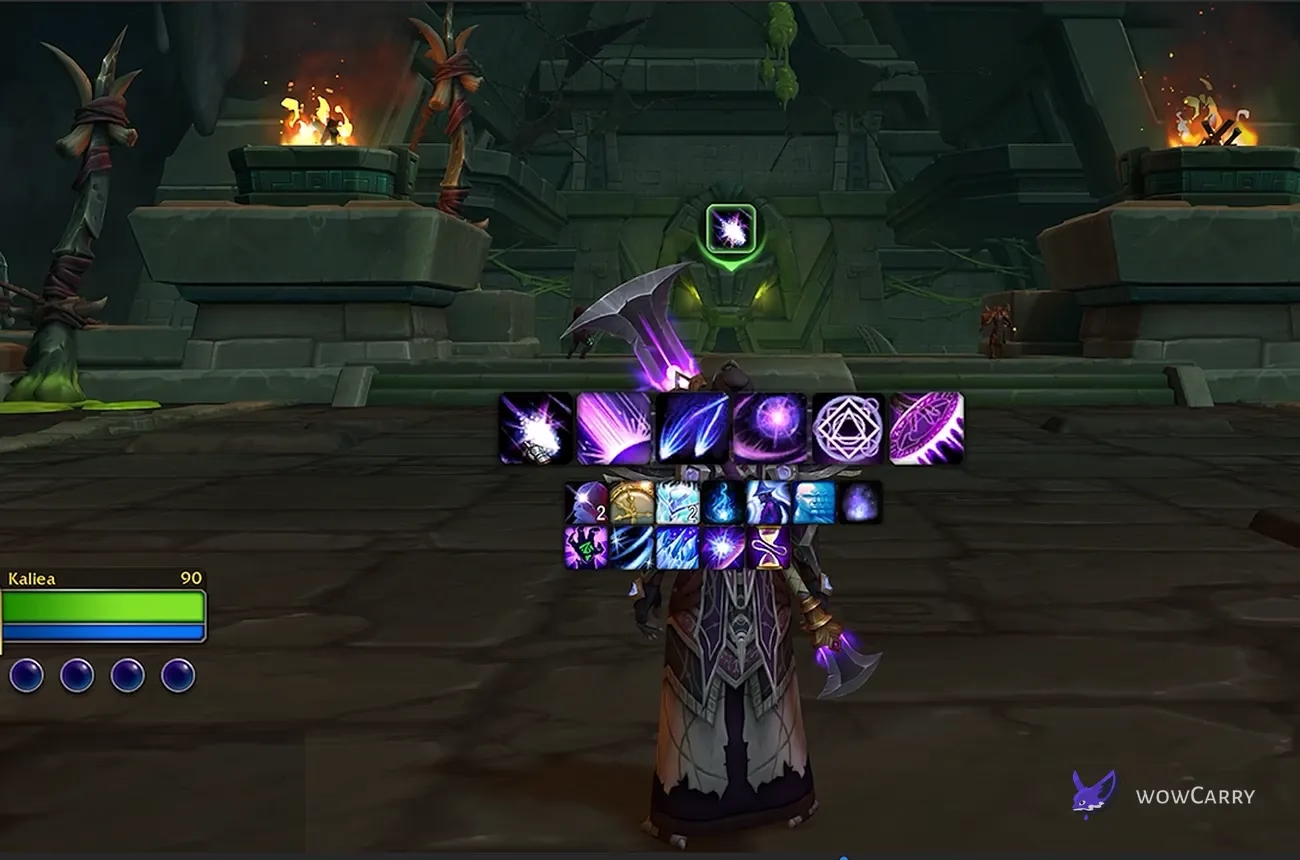
On the current English client, the direct route is Esc > Options > Gameplay Enhancements > Cooldown Manager. Check the enable box, close Options, and enter combat with a training dummy or harmless enemy. Your active specialization should populate the default frames. If your client uses different menu wording, type Cooldown Manager into the Options search field instead of guessing through older menu paths.
- Press Esc and open Options.
- Open Gameplay Enhancements, or search for Cooldown Manager.
- Enable the Cooldown Manager checkbox.
- Press Esc again, open Edit Mode, and confirm the Cooldown Manager frames are enabled.
- Select a frame to adjust its scale, orientation, visibility, and other available display controls.
- Open Advanced Cooldown Settings from the selected frame or the Options shortcut.
Patch 12.0.5 also added a shortcut: shift-clicking a supported feature checkbox in Edit Mode enables that feature directly. This is useful when the frames appear in Edit Mode but the main option was never switched on.
📌 Common mistake: Enabling a frame in Edit Mode and enabling the feature in Options can look like one step, but older layouts may leave one side unchecked. Confirm both if the frame outline exists only while editing.
Once the frames are visible, stop moving them for a moment and decide which information belongs in each tracking category.
How Advanced Cooldown Settings Organize Tracking
The settings panel is a sorter, not a priority calculator. It shows the entries Blizzard exposes for your current class, specialization, talents, and supported items. Dragging an icon changes where that information appears; it does not change the spell, keybind, cooldown, or rotation. Gray icons are usually unlearned options that can still be positioned for a future talent build.
| Category | Purpose and examples |
|---|---|
| Essential Cooldowns | Large, frequent decisions that shape the next few globals Core spenders, short rotational cooldowns, major burst buttons |
| Utility Cooldowns | Situational actions that matter when an event occurs Interrupts, defensives, dispels, crowd control, movement |
| Tracked Buffs | Binary or stack-based buff state in a compact icon frame Procs, short empowerments, personal defensive buffs |
| Tracked Bars | Remaining duration where the countdown shape matters Longer buffs, summons, ground effects, supported target debuffs |
| Not Displayed | Spells or buffs intentionally removed from the active frame on that tab Duplicates, rarely used talents, low-value passive information |
| Not Displayed: Items | Supported items available to add to a cooldown frame Trinkets, combat potions, health potions, healthstones |
| Group Frame Buffs | Healer-selected buffs shown on party and raid frames Supported healing effects that change the next group-frame decision |
The exact entries vary by specialization. Treat these placements as sorting examples, not a universal class template.
Essential Cooldowns and Utility Cooldowns
Essential Cooldowns should answer, “What can change my next action?” Keep the row short enough to read without scanning. Utility Cooldowns should answer, “What can solve the next mechanic?” A defensive with a two-minute cooldown may be more important than a rotational button during progression, yet it still belongs in Utility Cooldowns if you press it in response to danger. The split is about the trigger for the decision, not the raw cooldown length.
Drag within a category to match the order your eyes already use. Many players put rotational entries left to right and reserve a consistent edge for a major cooldown. Utility Cooldowns can follow a simple sequence such as interrupt, personal defensive, group utility, crowd control, then movement. Consistency across specs matters more than copying another player's exact order.
Tracked Buffs, Tracked Bars, and Not Displayed
Use Tracked Buffs when presence, absence, or stacks answer the question. Use Tracked Bars when remaining duration changes your decision. A six-second empowerment is often easier to judge as a bar; a proc you either have or do not have is usually cleaner as an icon. Supported target debuffs can also show duration and, where Blizzard enables the behavior, a pandemic-range state.
Move clutter into Not Displayed instead of shrinking every frame. The label applies to the entries hidden from the active settings tab, while Not Displayed: Items is a separate cooldown-tab group for supported items. Healers also have Group Frame Buffs for supported effects shown on party and raid frames. If the same effect appears twice, check whether one entry represents the cast cooldown and another represents its buff or supported target debuff before hiding either one.
✏️ Setup rule: Do not track the same decision in three places. If an action bar, buff icon, and bar all answer the same question, keep the version you read fastest and hide the rest.
With the categories sorted, adjust the physical layout without confusing frame placement with the saved tracking list.
How to Edit, Move, Hide, and Reset the Layout
Use Edit Mode for geometry: move each frame, choose an available orientation, adjust scale and spacing, and verify where the frame expands as entries appear. Use Advanced Cooldown Settings for content: reorder icons, switch categories, hide entries, and configure supported alerts. Keeping those jobs separate makes recovery much easier.
- Save the current Edit Mode layout or create a copy before a large redesign.
- Move Essential Cooldowns near your main point of focus, then place Utility Cooldowns close enough to notice without merging both rows.
- Place Tracked Buffs and Tracked Bars where they do not cover your character, ground effects, cast bar, or encounter warnings.
- Test expansion direction by entering combat and triggering several abilities.
- Return to the settings panel and hide low-value entries only after the frames sit correctly.
There are three different recovery levels. The current Blizzard panel shows a bottom-right Revert control, which is the appropriate choice while rolling back pending ordering or visibility edits. Re-importing a Cooldown Manager layout restores its tracked-entry organization. Restoring or resetting an Edit Mode layout restores frame geometry such as placement, scale, and orientation. A Revert click is not a substitute for either saved layout.
Midnight supports multiple Cooldown Manager layouts plus sharing and importing for tracked entries. Edit Mode maintains the separate HUD arrangement. Name Cooldown Manager layouts by purpose, such as raid, dungeon, or PvP, only when their contents truly differ. One well-tested pair of tracking and Edit Mode layouts is easier to maintain than several nearly identical copies.
⚠️ Before resetting: Confirm the active specialization and saved layout. A reset performed on the wrong layout can make a correct setup look lost when it is simply attached to another profile.
The next pass adds Patch 12.1 items and racials without turning Essential Cooldowns into an inventory list.
Tracking Trinkets, Potions, and Racial Abilities
Patch 12.1 adds supported trinkets, potions, and racial ability cooldowns or durations to the native tracker. Open the cooldown tab and look for Not Displayed: Items. This item group is separate from Not Displayed, which holds spells and abilities removed from the active cooldown frames. Blizzard's current screenshot places supported consumables in Not Displayed: Items so they can be dragged into Essential Cooldowns or Utility Cooldowns.
| Tracked type | Placement and decision |
|---|---|
| On-use trinket | Essential Cooldowns for planned damage or healing; Utility Cooldowns for defensive use Is the effect ready for this window? |
| Combat potion | Essential Cooldowns near the major cooldown it pairs with Can I use it in this planned window? |
| Health potion or healthstone | Utility Cooldowns beside personal defensives Which emergency recovery is available? |
| Active racial | Essential Cooldowns for throughput; Utility Cooldowns for control or defense Does this racial solve the current event? |
Do not assume every inventory item has a tracker entry. If an equipped trinket or carried potion does not appear, search all groups, reopen the panel after equipping it, and test on the correct specialization. If it remains absent, treat it as unsupported in the current build rather than inventing a hidden toggle.
Patch 12.1 also lets players ping supported spells and certain items from action bars or the Cooldown Manager. Use the normal ping interaction when a teammate needs readiness information. This communicates status; it does not reserve the cooldown or enforce a group plan.
After item tracking is in place, test the display against the speed and information load of the content you actually play.
Blizzard’s published settings example illustrates the separate item list. It comes from the 12.1 UI announcement and is a reference for the grouping, not a screenshot captured on a 12.1.5 Mage.
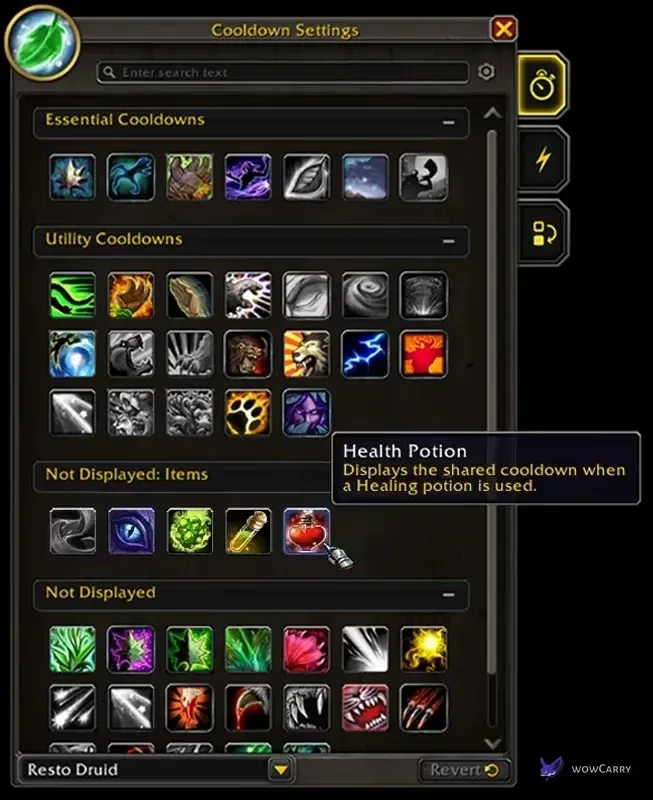
Use the list for your active specialization and equipped items. A screenshot from another character is useful for finding the section, but its exact spell selection will differ from yours.
Building a Layout for Encounters and PvP
A useful layout starts from decisions, not from a list of everything the panel can display. Run one short test, note what you failed to see, and add or move only that information. If you noticed the cooldown but reacted late, the problem may be position, size, or alert choice rather than a missing tracker.
Raid and Dungeon Use
Place defensives and movement tools where boss warnings naturally lead your eyes. Keep the main interrupt in a stable position within Utility Cooldowns. Tracked Bars work well for personal effects whose remaining duration changes movement or target choice. For a planned burst window, group the relevant major cooldown, on-use trinket, and combat potion visually, but keep enough spacing to read each timer.
Healers should also open Group Frame Buffs and the raid-frame controls added in Patch 12.1. Buff and debuff icons on party and raid frames can have independent sizes and border scales, while supported group buffs can receive visual alerts. Group Frame Buffs answer “who has the effect?”; the personal Cooldown Manager answers “is my action or effect ready?” Keeping the roles separate reduces duplicate information. After the UI is stable, explore current WoW raid options if you are choosing where to test it.
PvP Use
For PvP, prioritize your own interrupt, crowd control, break, mobility, defensives, burst cooldowns, and supported racial. The Cooldown Manager tracks your available personal information, but it does not track every enemy cooldown. Keep emergency buttons readable while moving, and avoid a large central block that hides opponents or ground indicators.
Build separate PvP and PvE layouts only when the decisions truly differ. Otherwise, preserve the same positions and hide a few irrelevant entries. Consistent placement makes it easier to react under pressure. You can review the Midnight PvP UI for the wider arrangement around frames, nameplates, and action bars.
Visual organization is only one part of readability. Sound, text-to-speech, and raid-frame filtering can carry information when constant icon scanning is uncomfortable.
Accessibility, Sound Alerts, and Raid-Frame Coordination
Midnight allows a right-clicked cooldown to receive sound or visual alerts for supported event types, with up to three alerts on one cooldown. Preview sounds before committing them, use distinct cues for distinct decisions, and avoid assigning a sound to every entry. Patch 12.1 added a Short sound category, which can reduce overlap during fast sequences.
In 12.1.5, Pulse Your Health adds a different kind of signal: set a health-percentage threshold in Audio Assist’s Combat Audio Alerts, then evaluate whether the looping sound remains useful alongside ability cues. Start conservatively and test its urgency at your normal audio volume. This is a health warning, not a new Cooldown Manager item.
Blizzard's Combat Audio Alert system reads supported combat events through text-to-speech and is configured under Options > Accessibility > Audio Assist. Patch 12.1 made Cooldown Manager sounds available to that accessibility feature. Start with one defensive or high-value readiness cue, adjust voice, volume, speed, and throttling, then add more only if each cue remains identifiable.
♿ Readability check: Color should reinforce a cue, not carry the entire meaning. Pair color with position, border, timer, sound, or text-to-speech so the state remains readable during heavy effects.
For healer coordination, choose raid-frame buff sizes and borders that remain legible at your normal group size. Hide low-value buffs and alert only on effects that change your next heal or dispel. A larger icon is useful only if it does not cover health, debuffs, or role information.
If the configured result does not match what you see in combat, work through the symptom rather than resetting everything at once.
Troubleshooting Missing Icons, Timers, and Items
Missing Surging Elements or Summon Darkglare? Blizzard’s October hotfixes repaired Surging Elements tracking on October 23 and an intermittent Summon Darkglare display issue on October 26. Recheck the affected entry before rebuilding your layout. Other missing entries still need the specialization, filter and support checks below.
- No frames outside Edit Mode
Main feature switch or frame visibility
Enable in Options, then confirm the frame in Edit Mode
- Icon is gray
Unlearned talent or inactive specialization entry
Verify the current build; gray entries can still be arranged
- Ability is missing
Hidden group, search filter, or current support
Search every category and check the correct spec
- Trinket or potion is absent
Item group, equipped state, or unsupported item
Check Not Displayed: Items; if still absent, treat it as unsupported
- Timer or frame looks wrong
Edit Mode display controls or addon interference
Review the selected frame, then run a clean UI test
- Order changed after talents or spec swap
Different active layout or changing entry set
Confirm the layout and spec before reordering
When an addon may be involved, disable only UI-modifying addons for a controlled test, run /reload, and check the native frame again. If the issue disappears, update or reconfigure the addon rather than deleting the entire interface. If it persists with the default UI, use Revert for pending list changes or test a copied Edit Mode layout before resetting your known-good setup.
Class support can change through hotfixes. Blizzard’s August 25 hotfix notes provide historical 12.1 examples of tracker additions and class-entry repairs. Use those as examples, then check the latest notes for your actual client build before deciding a missing spell requires an addon workaround.
FAQ
Why can’t I find Splinterstorm under ability cooldowns?
Patch 12.1.5 specifically makes Spellslinger’s Splinterstorm trackable as a Buff. Check the relevant buff lists with the correct specialization and hero-talent setup, clear filters and inspect hidden entries. A buff’s presence is a different state from an ability’s cooldown.
Is the Cooldown Manager built into WoW?
Yes. It is part of the modern WoW interface and does not require a separate download. Enable it in Options, then use Edit Mode and Advanced Cooldown Settings to choose what appears. It tracks player-facing cooldowns, buffs, supported target debuffs, and selected supported items. The available entries depend on your class, specialization, talents, and the current patch, so two characters will not necessarily show the same settings list.
Where do I enable the Cooldown Manager?
On the current English client, press Esc, open Options, choose Gameplay Enhancements, and enable Cooldown Manager. If that wording differs on your localized client, search Options for the feature name. You can also enter Edit Mode, expose the Cooldown Manager frames, and use the feature checkbox shortcut. Once visible, select a frame and open Advanced Cooldown Settings to sort the tracked entries.
What is the difference between Essential Cooldowns and Utility Cooldowns?
Essential Cooldowns hold information that frequently changes your next combat action, such as core rotational or burst cooldowns. Utility Cooldowns hold responses to a specific event, such as an interrupt, defensive, dispel, crowd-control tool, or movement ability. Cooldown length alone does not decide the category. Put each entry where you will look when its decision occurs, then keep the order consistent across your layouts.
Can it track trinkets, potions, and racial abilities?
Yes, Patch 12.1 added support for trinkets, potions, and racial ability cooldowns or durations. Look in Not Displayed: Items, which is separate from Not Displayed for spells and abilities, then drag supported entries into Essential Cooldowns or Utility Cooldowns. The feature does not include every item. If an equipped item remains absent after reopening the correct specialization's settings, it may not have a native entry in the current build.
Why is a spell gray or missing from the frame?
A gray icon commonly represents an ability your current build has not learned; Blizzard intentionally lets you arrange those entries in advance. A missing icon may be in Not Displayed, filtered by search, tied to another specialization, or unsupported. Clear the search, inspect Not Displayed on the relevant tab, confirm talents and spec, and check the active Cooldown Manager layout. Recent hotfixes show that individual class entries can also be added or repaired after a patch.
Does the Cooldown Manager replace every combat tracker?
No. The Cooldown Manager does not replace every combat tracker. It covers supported personal cooldowns, buffs, supported target debuffs, items, alerts, and consistent frame placement. It does not track every enemy cooldown or automatically reproduce every imported aura package and custom layout behavior. Start with the built-in manager, identify a specific missing decision, and only then evaluate another tool maintained for the current Midnight interface rules.
Can I use the Cooldown Manager in PvP?
Yes. The Cooldown Manager is useful for your own burst, defensives, crowd control, movement, interrupt, trinket, and supported racial states. Keep emergency entries visible without covering opponents or ground effects. It does not track every enemy cooldown. Test it in a low-pressure match or training environment, then change only the entries you consistently miss.
How do I reset or recover a Cooldown Manager setup?
Match the recovery tool to the problem. Use Revert while abandoning pending ordering or hiding changes in the settings panel. Re-import a Cooldown Manager layout to restore tracked-entry organization. Restore or reset an Edit Mode layout when frame placement, scale, or orientation is wrong. Before any reset, confirm the active specialization and both layout layers so you do not overwrite a correct setup attached to another profile.
Last reviewed October 28, 2026. Added the October 26 Summon Darkglare display fix alongside October 23 Surging Elements tracking. Retained the detailed setup instructions, original author, URL and official UI reference. No firsthand gameplay testing is claimed.